Monitor Arm Vs Monitor Stand: Which Cleans Up Your Desk Better?
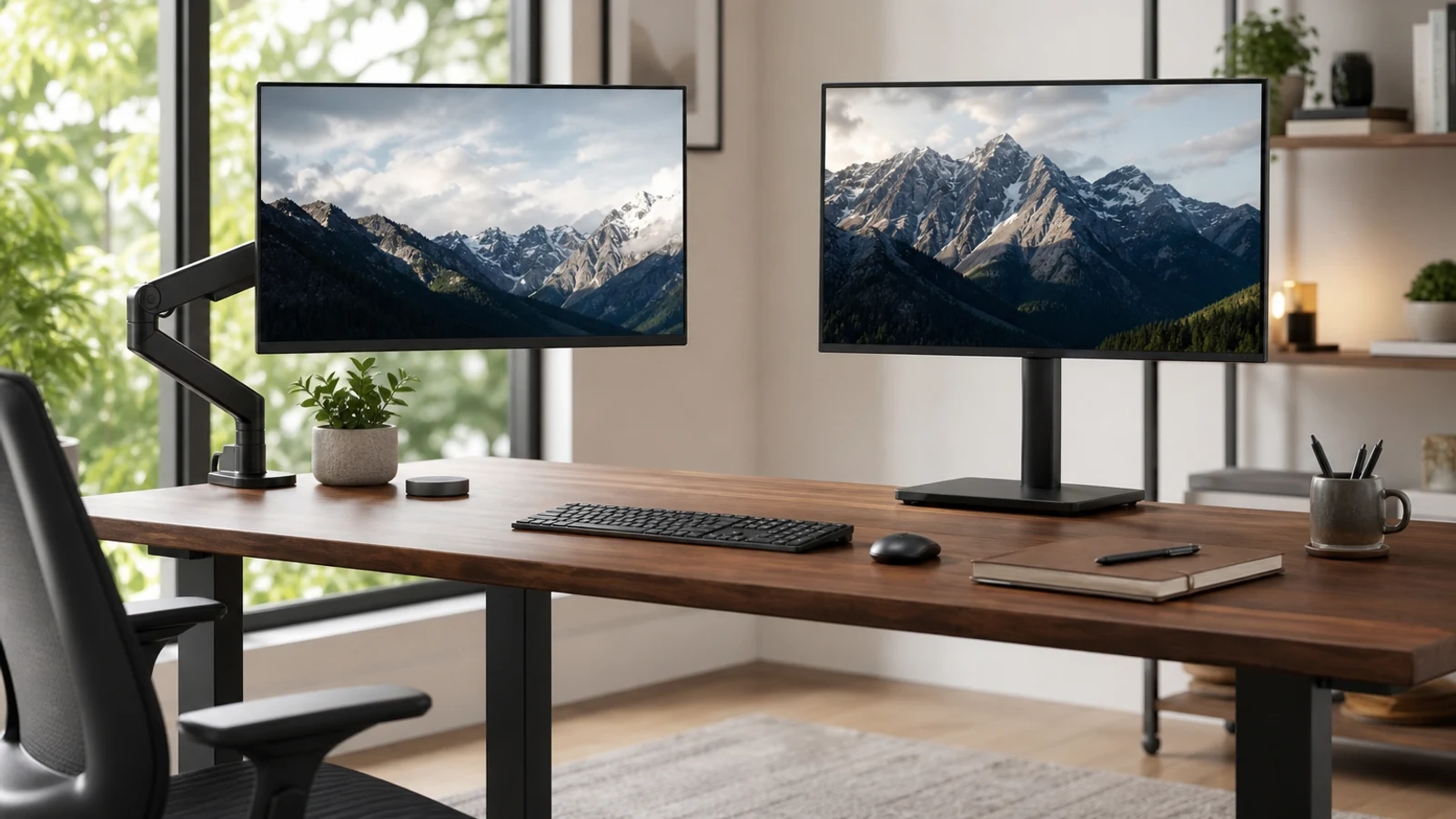
Monitor Arm Vs Monitor Stand At A Glance
| Decision Point | Monitor Arm | Monitor Stand |
|---|---|---|
| Desk space | Uses a small clamp or grommet area and leaves most of the surface open | Base remains on the desktop, although some space may be available underneath |
| Adjustability | Usually offers height, depth, tilt, swivel, and rotation adjustments | Often provides height and tilt adjustment; premium models may add swivel or pivot |
| Installation | Requires desk-edge access, compatible thickness, and careful tightening | Usually sits on the desk with little or no installation |
| Stability | Can be very stable when properly installed, but depends on desk and clamp fit | Generally predictable because the weighted base rests on the desktop |
| Best for | Small desks, sit-stand desks, multiple monitors, and frequent repositioning | Simple height correction, glass or fragile desks, and fixed workstations |
| Compatibility | Usually requires a VESA-compatible monitor and a matching weight range | Can use the original monitor stand or a freestanding VESA stand |
| Cable management | Often routes cables along the arm for a cleaner appearance | May include clips or channels, but cables still travel across the desktop or behind the base |
The monitor arm wins the visual cleanup contest in most home-office setups: it moves the display’s base off the desktop, opens space for a keyboard, notebook, speakers, or charging gear, and makes it easier to pull the screen closer for focused work or push it back when you need writing space. But that does not make an arm the automatic upgrade.
A monitor stand is simpler, often more stable by default, and better suited to desks where clamping is impractical. It can also be enough if your monitor already sits at a comfortable height and you do not frequently change its position. The right question is not simply which option looks cleaner. It is which one solves your desk’s actual limitation without adding installation hassle or compatibility problems.
How Monitor Arms And Stands Differ
A traditional monitor stand supports the screen from below. Its footprint stays on the desktop, but the design may provide height adjustment, tilt, swivel, portrait rotation, or storage space underneath. Some freestanding VESA stands use a weighted base and offer more movement than the stand included with a monitor.
A monitor arm attaches to the back of the display and to the desk, usually with a C-clamp or grommet mount. Because the screen is suspended above the surface, the arm can free the area occupied by the original base. Many arms also let you change viewing distance and angle without lifting or dragging the monitor.
Both options can support a comfortable workstation. The display should be directly in front of you, with the top of the screen at or slightly below eye level, and far enough away that you can read without leaning forward. An arm is valuable when it makes those adjustments easier, not merely because it looks more minimal.
Where A Monitor Arm Cleans Up Better
If the main problem is a crowded or shallow desk, an arm has the bigger potential payoff. The monitor base is usually the largest single object occupying the rear half of the work surface. Removing it can make the desk feel wider even when the desk itself has not changed.
The benefit is especially noticeable with a keyboard-and-mouse setup, a laptop beside a desktop monitor, or a desk used for both work and hobbies. You can slide a notebook or drawing tablet beneath the screen, move the monitor aside for paperwork, or pull it forward for a video call. A sit-stand desk also benefits because the screen can travel with the user instead of remaining fixed on a base.
Choose an arm if: • Your monitor stand takes up valuable depth or blocks storage.
- You regularly alternate between sitting and standing.
- You need to pull the display closer for detailed work and push it back afterward.
- You use two monitors and want to align or angle them precisely.
- You want portrait orientation for coding, documents, or long webpages.
- Cable routing and a floating-screen appearance are meaningful priorities.
Where A Monitor Stand Is The Better Fit
A stand is often the more sensible purchase when you want a fixed improvement with minimal risk. You place it on the desk, attach or set the monitor on it, and adjust it without drilling, clamping, or checking whether the desk edge can withstand concentrated pressure.
A stand is also useful for desks with no usable rear edge. Glass tops, desks pushed tightly against a wall, unusually thick countertops, and desks with cable trays or rear panels can make clamp installation difficult. A weighted stand avoids those constraints, although its base still requires enough clear surface area.
Stands can be preferable when stability matters more than movement. If you rarely adjust the screen, a heavy freestanding base may feel more reassuring than an articulated arm. It is also a good match for a monitor that is already in the right place and only needs a few extra inches of height or a small amount of tilt adjustment.
Ergonomics: The Arm Does Not Automatically Win
An arm offers more adjustment, but adjustment only helps if you use it. A poorly positioned arm can leave the monitor too high, too close, or off to one side. A well-positioned stand can be just as comfortable for a fixed seated workstation.
Start by sitting in your normal working posture with your back supported. Place the primary monitor directly in front of you, keep the top edge at or slightly below eye level, and aim for a viewing distance of roughly 20 to 40 inches depending on screen size, text scaling, and visual comfort. The keyboard and mouse should remain close enough that your shoulders stay relaxed.
For two monitors, put the screen you use most directly in front of you. If you split time evenly, keep both screens close together with minimal head turning. An arm makes this easier to fine-tune, but a dual-monitor stand can also work well when the displays remain in a consistent position.
Compatibility Checks Before Buying An Arm
The most common arm-buying mistake is checking the monitor’s screen size but not the mounting and desk requirements. Before ordering, look at the monitor specifications and the arm’s technical sheet.
VESA pattern: Many monitor arms support common 75-by-75-millimeter or 100-by-100-millimeter mounting patterns, but compatibility is not universal. Some monitors require an adapter, while certain all-in-one displays or sealed designs may not accept a standard arm at all.
Monitor weight: Use the display’s weight without its original stand when comparing it with the arm’s supported range. Ultrawide, curved, and large gaming monitors may need a heavy-duty arm. Leave practical headroom rather than buying an arm that is operating at its limit, especially if you plan to add a webcam, light, or other accessory to the setup system later. Desk thickness and construction: Measure the actual clamping area, not just the thickest part of the desktop. Confirm that the clamp range includes it and that the desk has enough clearance underneath. Particleboard, hollow-core, glass, and thin laminate surfaces may need a reinforcement plate or may be poor candidates for a concentrated clamp load. Reach and height: Check whether the arm can place the monitor far enough from the edge and high enough for your posture. A tall desk, deep desktop, or large display can expose the difference between an arm that technically fits and one that works comfortably.
The Real Trade-Offs Of A Monitor Arm
The arm’s biggest advantage is also its main complication: more movement means more parts to adjust. Gas-spring arms may need tension calibration, and the display can drift, sag, or feel stiff when the monitor weight falls outside the intended range. Cable slack also matters; a screen that moves through a wide arc needs enough cable length to avoid pulling on ports.
Installation takes more planning than placing a stand. You may need to move the desk away from the wall, remove the original monitor stand, route cables, tighten the clamp, and level the display. A poorly tightened clamp can wobble, while an over-tightened clamp can damage a vulnerable desktop.
Arms can also make a desk look cleaner while making the area behind the desk more complicated. The clamp, cables, power brick, and arm joints remain part of the setup. If the desk is already against a wall or in a shared room, the rear view may matter less than the reclaimed surface area.
The Real Trade-Offs Of A Monitor Stand
A stand gives up some flexibility in exchange for simplicity. The base may consume significant depth, and the monitor may not move far enough forward or sideways for a shallow desk. A basic stand may also provide only tilt adjustment, which can leave shorter or taller users with limited height control.
The positive side is predictability. A stand does not require a compatible desk edge, and it is easy to remove if you move or change desks. A broad, weighted base can be less sensitive to accidental bumps than a lightweight arm. Some stands also provide a useful shelf-like area beneath the monitor for a keyboard, notebook, or small accessories.
If desk space is the problem, measure before assuming a stand will help. The monitor may sit higher while still occupying nearly the same front-to-back footprint. A riser-style stand can improve storage and posture, but it will not create the floating, open work surface that a properly installed arm can provide.
Which One Should You Buy?
Choose a monitor arm for a compact home office, a sit-stand desk, a multi-monitor setup, or any workflow that involves frequent repositioning. It is also the better choice when the original monitor base is the main source of clutter and your desk is structurally suitable for a clamp or grommet mount.
Choose a monitor stand when you want a quick, low-commitment height upgrade, your desk cannot accept a clamp, or your screen will stay in one position most of the time. A stand is especially sensible when the monitor is not VESA-compatible or when you value a broad, stable base over maximum movement.
Do not upgrade yet if the monitor is already at a comfortable height, the desk has enough usable surface, and you rarely adjust the screen. Replacing a perfectly adequate stand will not automatically improve posture or productivity. First try moving the monitor, changing text scaling, clearing unused accessories, and repositioning the keyboard and chair.
A Practical Buying Checklist
Measure the problem before choosing the accessory. Write down the desktop depth, the monitor’s weight without its original base, the VESA pattern, and the height you want the display to reach.
For a monitor arm, verify: • VESA pattern and included screw hardware.
- Supported monitor weight, screen size, and curvature limits.
- Desk thickness and clamp or grommet requirements.
- Arm reach, vertical travel, tilt, swivel, and rotation range.
- Clearance behind the desk and enough cable length for movement.
- Whether the desk needs a reinforcement plate. For a monitor stand, verify: • Base dimensions and the amount of desk depth it consumes.
- Minimum and maximum monitor height.
- Tilt, swivel, and pivot adjustments.
- Weight capacity and VESA compatibility if it does not use the original stand.
- Stability on your desk surface.
- Whether the base leaves useful storage space underneath.
Bottom Line
A monitor arm usually cleans up a desk better because it removes the monitor base and gives you control over height, depth, and angle. That makes it the more capable option for small desks, flexible workflows, and sit-stand setups.
A monitor stand remains the better answer when installation constraints, stability, or simplicity matter more than a completely open desktop. If your screen only needs a little more height, buying a stand can avoid paying for movement you will never use.
For more workspace planning, compare this decision with our guides to [home office essentials] and [office chair features worth paying for]. The monitor accessory works best when the chair, desk height, keyboard position, and screen distance are adjusted as one system.
Go Deeper Before You Choose
For more context, see home office essentials.
For more context, see office chair features worth paying for.
Research References
These sources informed the factual background for this guide. BuyingView applies its own editorial judgment to the purchase decision.
Questions & Answers
Useful follow-up questions that often change the buying decision.
Does a monitor arm save more space than a monitor stand?
Usually, yes. An arm moves the monitor base off the desktop, while a stand keeps a base on the surface. The amount of space saved depends on the arm’s clamp and how much depth the original stand used.
Are monitor arms better for posture?
Not automatically. An arm makes it easier to place the monitor at the correct height, distance, and angle, but a properly positioned stand can work just as well for a fixed workstation.
Can every monitor use a monitor arm?
No. Check for a VESA mounting pattern or a manufacturer-approved adapter, then confirm the monitor’s weight and the arm’s supported range. Some all-in-one displays and sealed designs are not suitable for standard arms.
Is a monitor stand more stable than an arm?
A freestanding stand often feels more predictable because its weighted base rests on the desktop. A properly installed arm can also be stable, but its performance depends on the desk construction, clamp fit, monitor weight, and installation.
Should I buy a monitor arm for one monitor?
A single-monitor arm can be worthwhile if you need to reclaim desk space, change viewing distance, use a sit-stand desk, or rotate the screen. If you only need a small height increase, a stand may be simpler and less expensive.
When should I avoid a monitor arm?
Avoid one when the desk is glass, hollow, too thin, too thick for the clamp, tightly blocked against a wall, or not strong enough for a concentrated load. Also reconsider if your monitor lacks compatible mounting hardware or is already comfortable on its current stand.