USB-C Hub vs Docking Station: Which Does Your Desk Actually Need?
USB-C Hub Vs Docking Station At A Glance
| Decision Point | USB-C Hub | Docking Station |
|---|---|---|
| Best For | Travel, occasional expansion, and simple setups | Permanent desks and many connected peripherals |
| Typical Connection | Bus-powered through one USB-C cable | Often uses a separate power adapter |
| Port Selection | A few common ports in a compact body | Broader selection, often including Ethernet, audio, and multiple display outputs |
| Laptop Charging | May offer USB-C power pass-through, but capacity varies | Usually designed to charge the laptop through the dock |
| Display Support | Often one monitor or a limited display configuration | More display outputs, with support depending on native video or DisplayLink technology |
| Desk Convenience | Requires reconnecting several accessories more often | One-cable connection for most desk equipment |
| Main Trade-Off | Less expensive and easier to carry, but limited expansion | More capable and convenient, but larger, costlier, and more compatibility-sensitive |
The difference between a USB-C hub and a docking station is less about the number of ports than the role the accessory plays. A hub adds a handful of connections to a computer that is otherwise portable. A dock is intended to turn a laptop into the center of a more complete workstation, often handling power, monitors, networking, storage, and input devices through one connection.
That distinction matters because USB-C is only a connector standard. Two USB-C ports can look identical while offering very different combinations of USB data, charging, and video support. Some ports support DisplayPort Alternate Mode; some do not. Some support fast data; others operate at slower USB speeds. The dock or hub cannot create capabilities that the laptop port lacks.
For most shoppers, the practical question is simple: do you need extra ports occasionally, or are you trying to make a laptop behave like a desktop at a fixed workstation? The first points toward a hub. The second usually justifies a docking station.
What A USB-C Hub Does Best
A USB-C hub is a compact expansion device. It commonly connects to the laptop with one USB-C cable and provides a small set of outputs such as USB-A, USB-C data, HDMI, an SD or microSD card slot, and sometimes USB-C power pass-through.
Hubs are especially useful for laptops with only two or three ports, travelers who move between locations, and people who occasionally connect a presentation display, external drive, camera card, keyboard, or mouse. They are also convenient for a simple home-office arrangement with one monitor and a modest number of accessories.
A hub is often the better fit when: • You carry your computer between home, work, school, or travel locations
- You need two or three extra ports rather than a full workstation connection
- You use one external display at a time
- You do not need wired Ethernet or a permanent audio setup
- You already have a separate laptop charger and do not mind using it
- You prefer a small accessory that can fit in a laptop sleeve or travel pouch The main limitation is shared bandwidth and power. Several connected devices may draw from the same upstream connection, so copying files to an external SSD while using other high-speed accessories can expose the limits of the hub and the laptop port. A hub also tends to have fewer display options and less robust power delivery than a full dock.
What A Docking Station Does Best
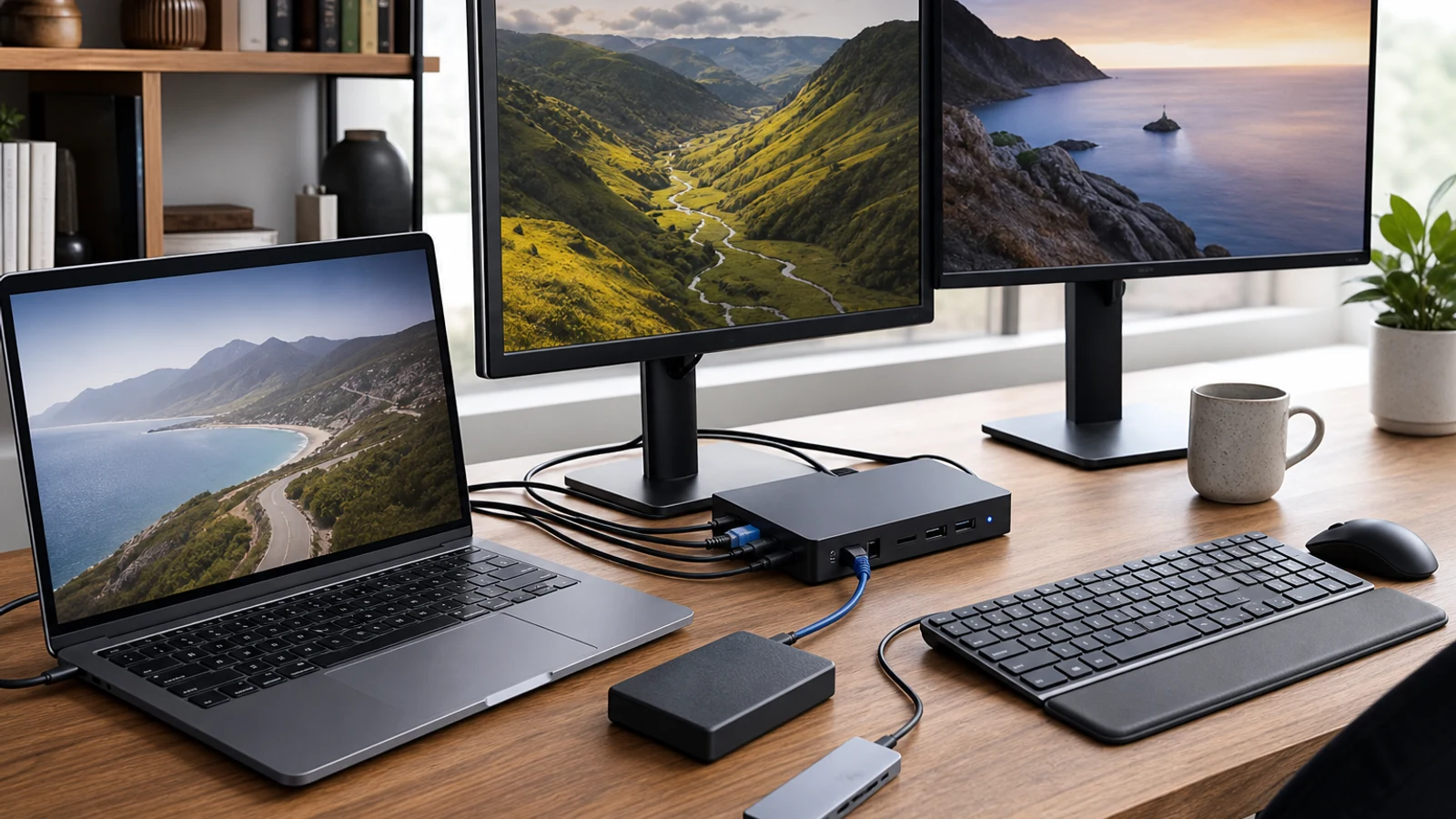
A docking station is designed for a fixed desk. It typically has a larger enclosure, a separate power supply, several USB ports, one or more display outputs, Ethernet, audio, and sometimes additional USB-C ports or memory-card readers. The goal is to leave most desk accessories connected to the dock and connect the laptop with one cable.
That one-cable workflow is the dock’s biggest advantage. At the start of the workday, you can connect power, one or more monitors, a keyboard, mouse, webcam, wired network, external storage, and speakers without plugging each item into the laptop individually. When it is time to leave, disconnect one cable and take the computer with you.
A dock makes more sense when: • Your laptop is used at the same desk most days
- You want laptop charging and peripherals through one connection
- You use two monitors or a monitor plus several other desk accessories
- You need wired Ethernet for reliability, speed, or workplace requirements
- You connect a webcam, microphone, speakers, storage, and input devices together
- You want to reduce cable swapping and preserve the laptop’s built-in ports Docks are not automatically universal. The advertised number of monitor outputs does not guarantee that every laptop can run every display at the listed resolution and refresh rate. Compatibility depends on the computer’s graphics hardware, USB-C or Thunderbolt capabilities, the dock’s video technology, the monitors, and the cables.
The Display Question Changes The Answer
If you use one standard monitor, either a hub or a dock may work. The important checks are the monitor’s resolution and refresh rate, the laptop’s video output support, and whether the accessory uses a native video connection or USB graphics technology.
A native USB-C display connection generally uses the laptop’s own graphics output through DisplayPort Alternate Mode, USB4, or Thunderbolt. This can be a straightforward choice for ordinary office work, but the computer still has to support the required number of displays. A dock with multiple video connectors cannot necessarily bypass the laptop’s built-in display limit.
Some docks use DisplayLink or a similar USB graphics system to add displays through software and a dedicated graphics chip in the dock. This can be useful when a laptop has limited native display support, particularly for productivity screens. It also introduces drivers, permissions, and another layer of compatibility. DisplayLink-based video may be less suitable for fast gaming, color-critical work, high-refresh use, or applications where minimal latency is important. Check the specific dock’s operating-system support and display limitations rather than assuming that every “universal” dock behaves the same way.
Charging And Power Delivery Need Careful Checking
Many hubs advertise USB-C power pass-through, while most full docking stations are built around laptop charging. Neither label alone tells you how much power the computer will actually receive.
Start with the wattage supplied by your laptop’s normal charger. Then check the dock’s maximum power output to the computer after accounting for the dock’s own power needs. A dock advertised with a high input wattage may deliver less to the laptop, and some computers may reduce charging speed when the dock cannot provide enough power.
Also check whether the dock includes its power adapter. A bus-powered hub normally draws power from the laptop, which keeps it portable but limits how much it can supply to connected accessories. A powered dock is better for multiple peripherals, charging, and a permanent setup, but it adds another device and cable to manage.
Ports And Bandwidth Matter More Than Port Count
A long list of ports can be misleading. Look for the connection types and speeds that match your actual workflow rather than choosing the accessory with the largest number printed on the box.
For external storage, identify whether the relevant USB-C or USB-A ports support the speed you need. For networking, check whether Ethernet is included and whether the stated speed matches your internet service or local network. For photography and video work, check the card-reader format and whether simultaneous transfers share bandwidth with other ports.
Pay attention to the upstream connection between the computer and the accessory. If the hub or dock connects through a slower USB mode, its ports and display features may be constrained even if the enclosure includes faster-looking connectors. USB-C describes the physical plug, not a guaranteed performance tier.
Laptop And Operating-System Compatibility
Before buying, identify the exact laptop model and the capabilities of the specific USB-C port you plan to use. Manufacturer documentation is more useful than relying on the port shape or a retailer’s generic compatibility list.
Check for: • USB data speed supported by the laptop port
- USB-C Power Delivery input and the maximum supported charging rate
- DisplayPort Alternate Mode, USB4, or Thunderbolt support
- The maximum number of external displays supported by the computer
- Operating-system support for the dock’s drivers or management software
- Whether the laptop’s manufacturer restricts certain charging or display combinations Mac and Windows computers can behave differently with external displays, especially when multiple monitors or DisplayLink software are involved. A dock that works well for a Windows laptop may not offer the same display flexibility on a Mac, and the reverse can also be true. If you switch between two computers, confirm that the dock supports both rather than assuming that a universal label guarantees identical features.
Which One Fits Common Desk Setups?
A Basic Home Office
For a laptop, one monitor, keyboard, mouse, and occasional USB accessory, a hub is often enough. If the laptop stays at the desk and you want charging through the same cable, a powered hub or entry-level dock may be more convenient than a bare hub.
A Two-Monitor Productivity Desk A docking station is usually the better starting point, but verify the laptop’s display limit and the dock’s display method. Native video connections may be preferable for simplicity and responsiveness. DisplayLink can expand options, but it may require software and may not be ideal for every type of visual work. A Creative Or Storage-Heavy Setup Choose based on bandwidth, card-reader performance, external-drive support, and display requirements rather than the hub-versus-dock label. A high-quality hub can be sufficient if the laptop already supplies power and display output. A dock is more attractive if you also need Ethernet, multiple displays, and many permanently attached accessories. A Gaming Desk Do not assume a dock is the best way to connect a high-refresh gaming monitor. A direct connection to the laptop may offer a simpler path to the computer’s graphics hardware and the monitor’s full refresh capability. A hub or dock can still handle keyboard, mouse, Ethernet, and secondary accessories, but check the primary display specifications carefully. A Shared Or Hot-Desk Environment A hub may be easier to move and replace. If several people use the same desk, a dock with a clearly accessible host cable can provide a cleaner handoff, but only if it supports the laptops that will connect to it.
When Not To Buy A Dock
A dock is unnecessary if you only need to connect a flash drive, wired mouse, or one occasional HDMI display. It may also be a poor choice if you frequently travel, have little desk space, or do not want a separate power brick.
You may also want to delay buying until you replace the laptop if its USB-C port cannot provide the display, charging, or data features you need. Buying a more expensive dock will not turn a charge-only USB-C port into a video-capable connection.
Likewise, do not buy based solely on a promise of multiple monitors. Confirm the exact laptop model, operating system, monitor resolutions, refresh rates, and whether the dock relies on native video or DisplayLink.
A Practical Buying Checklist
Before choosing, write down the setup you want to connect today and the equipment you may add within the next year. Then match the accessory to that list rather than to a generic port count.
Choose a USB-C hub if: • Port expansion is occasional
- One monitor is enough
- Compact size matters
- You already have a charger
- You do not need Ethernet or many permanent accessories Choose a docking station if: • The laptop is your primary desk computer
- You want one-cable connection and charging
- You use multiple monitors or many peripherals
- Ethernet, audio, or additional storage connections matter
- You are willing to check detailed compatibility information For either option, verify the upstream USB-C features, charging output, display support, port speeds, included power supply, operating-system compatibility, and return policy.
The Bottom Line
A USB-C hub is the sensible choice for portability, simple expansion, and occasional connections. It keeps the setup compact and usually costs less, but it offers fewer ports, less power headroom, and less desk automation.
A docking station earns its space when your laptop is effectively a desktop at one location. The convenience of one-cable connection, laptop charging, multiple displays, Ethernet, and permanently connected accessories can outweigh the higher cost and added complexity.
The right decision is not determined by the word “dock” or “hub” on the product page. It comes down to your laptop’s port capabilities, the number and type of displays, your charging needs, your workflow, and whether the accessory will live in a travel bag or stay on your desk. For related workspace decisions, see the guide to home-office essentials and the comparison of a portable monitor versus a tablet as a second screen.
Go Deeper Before You Choose
For more context, see home-office essentials.
For more context, see portable monitor versus a tablet as a second screen.
Research References
These sources informed the factual background for this guide. BuyingView applies its own editorial judgment to the purchase decision.
Questions & Answers
Useful follow-up questions that often change the buying decision.
Is a USB-C hub the same as a docking station?
No. A hub is generally a smaller, simpler expansion accessory with a limited group of ports. A docking station is designed for a more permanent workstation and usually adds broader connectivity, laptop charging, display outputs, Ethernet, and one-cable desk convenience.
Can any USB-C hub connect a monitor?
No. The laptop’s USB-C port and the hub must support video output, usually through DisplayPort Alternate Mode or another supported graphics technology. A USB-C connector that handles charging and data may not support displays.
Do docking stations charge laptops?
Many do, but the charging output varies. Check the dock’s actual power delivery to the computer, whether its power adapter is included, and whether that output meets your laptop’s normal charging requirements.
Is DisplayLink better than native USB-C display output?
Neither is universally better. Native display output is often simpler and can be preferable for low-latency or high-refresh work. DisplayLink can be useful for adding screens beyond a computer’s native display support, but it may require software and can have application, refresh-rate, or performance limitations.
Can a dock run two monitors from any laptop?
No. The laptop, dock, operating system, video technology, monitor resolutions, and cables all affect the result. Some computers have strict limits on the number of external displays, while some docks use DisplayLink to provide additional displays through software.
Should I buy a hub or dock for a gaming laptop?
Use a dock or hub for secondary accessories if convenient, but consider connecting the primary high-refresh monitor directly to the laptop. Check the dock’s supported refresh rates and whether its video outputs use native graphics or USB graphics technology.